Translation Manager
Features
Send Umbraco content to a translation agency, a machine translation service or an AI model. Review what comes back, then publish it. All in the backoffice.
Connectors
Use the translation service you already have
A connector links Translation Manager to whoever does the translating. Each translation set picks its own connector, so one site can send its legal pages to an agency and its blog through DeepL.
Translation agencies and platforms
Human translators, with the agency's own review process and translation memory.






Machine translation
Fast first drafts that an editor checks in Umbraco before they go live.



AI models
One AI connector covers the providers below, plus any service with an OpenAI-compatible API. Or translate through your existing Umbraco.AI setup.

- OpenAI
- Anthropic Claude
- Google Gemini
- Azure OpenAI
- Azure AI Foundry
- GitHub Models
- Ollama
- Umbraco.AI
Files and testing
XLIFF files for any translator or CAT tool, and a passthrough connector for trying out your workflow.


XLIFF works with every translator
The XLIFF connector comes with every install. Download an XLIFF 1.2 or 2.0 file for a job, hand it to your translator or load it into SDL Trados or any other CAT tool, then upload the translated file. Translation Manager matches it back to the right pages.
It's the easiest place to start. Move to a direct integration when you're ready and your jobs and sets stay as they are.
AI translation
Your AI model, your prompt
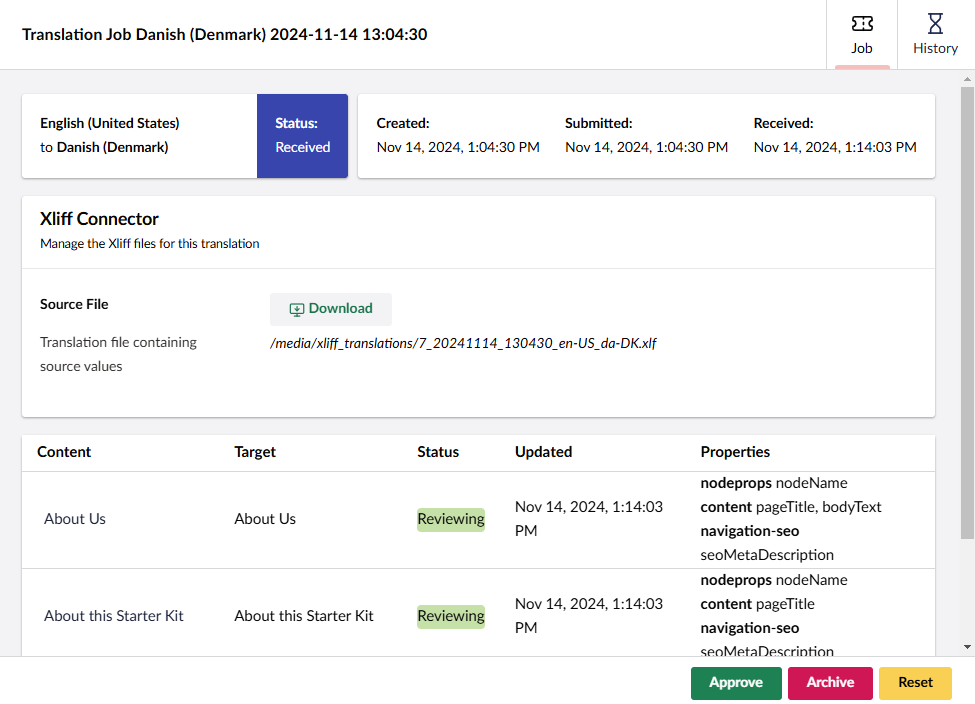
The AI connector translates through the provider you choose, with your API key and your prompt. AI output comes back as a normal job, so a person still reviews it before it's published.
- OpenAI, Anthropic Claude, Google Gemini, Azure OpenAI, Azure AI Foundry and GitHub Models, or run models locally with Ollama
- Point the OpenAI option at any OpenAI-compatible endpoint
- Edit the system prompt and the translation prompt to set tone, audience and house style
- Throttling and retries keep big jobs inside your provider's rate limits
- Already set up Umbraco.AI? The Umbraco.AI connector translates through it
- AI connector documentation
Batch translation for big jobs
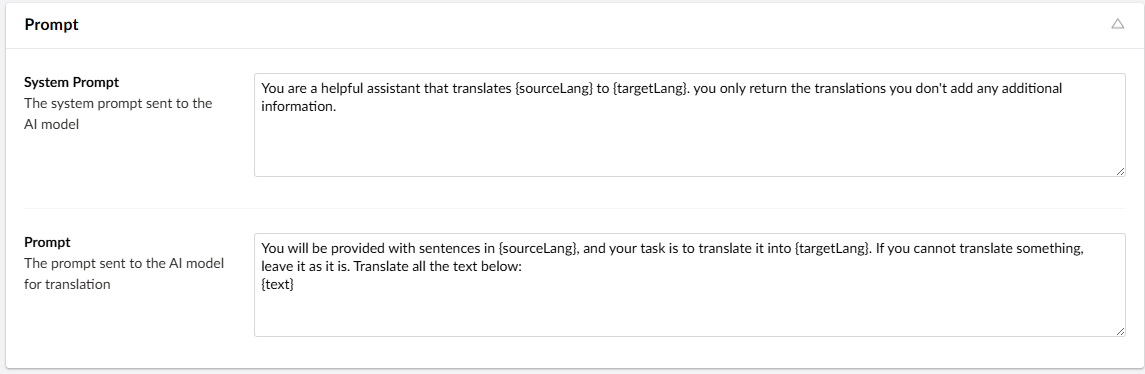
Sending a whole site one request at a time is slow, and it runs into the provider's rate limits. Batch mode sends the job as a single batch instead. The provider works through it in the background, Translation Manager checks on it, and the job moves to Received when the translations are back.
Editors don't sit and wait for it to finish. Batches can take a while, up to 24 hours with OpenAI, though usually much less.
- Set batch mode per connector to never, always, ask the editor, or only for jobs of more than five pages
- Works with OpenAI, Azure OpenAI and Azure AI Foundry through the AI connector, and with DeepL
- Content already in translation memory is filled in straight away, and only the rest goes into the batch
Quick translate
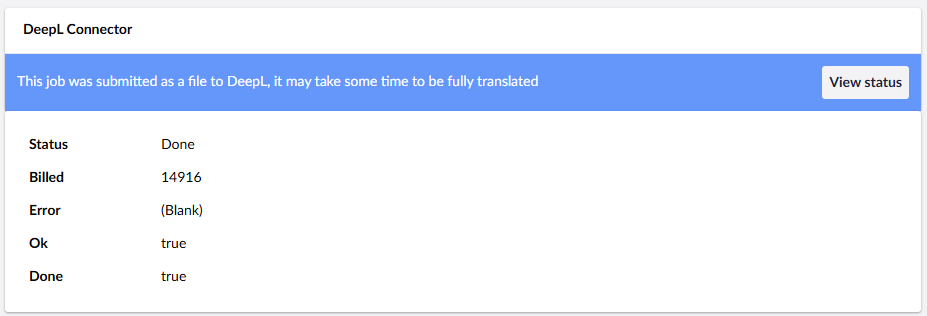
Turn it on for a set and editors get a Quick translate button on each page. One click machine-translates that page, without building a job by hand.
Translate in place
Translate a page that doesn't belong to a set, such as a copied page still in the original language. Culture-variant pages get the new language alongside the old one.
Translation memory and glossary
Translate less, spend less
Translation Manager tracks what changed and what has already been translated, and only sends the rest. You don't pay to translate the same words twice.
Translation memory
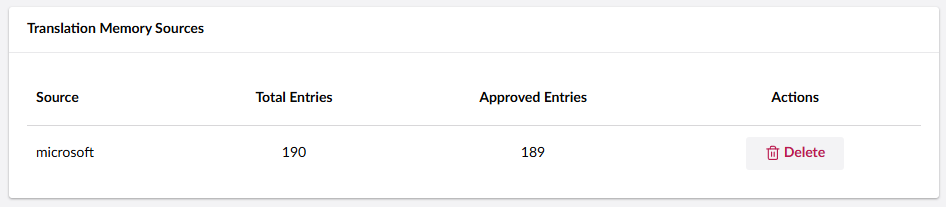
Before a machine or AI connector sends anything, it checks each phrase against translations you've already approved. Exact matches are filled in locally, and only new or changed text goes to the service.
Only approved jobs add to memory, so a translation you rejected never comes back. You can see and clear each connector's memory from the Translations section.
Change detection
When an editor changes a page, Translation Manager notes which properties changed. The next job sends those properties and leaves the rest alone.
Before you send, a job shows estimated word and character counts, so you know roughly what it will cost.
Glossary
Keep a list of terms that should be translated the same way every time, such as product features or job titles. Mark brand names as "do not translate" and supporting connectors leave them exactly as written.
- Values for every language on one screen
- CSV export and import, one language pair at a time, for a translator to fill in
- TBX (ISO 30042) export and import, to move a termbase between sites or tools
- Glossary and memory each have their own user permission
Workflow
Send, track and approve without leaving Umbraco
Editors manage the whole process from the backoffice. Nobody needs a spreadsheet to know which pages are out for translation.
Send
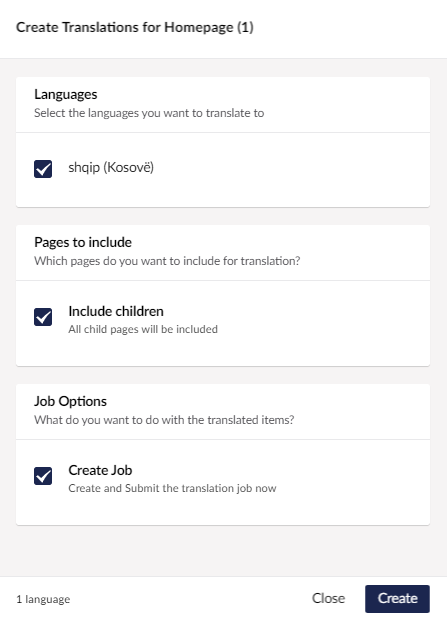
- Send a single page, a branch, or a whole site
- Bulk translation lets you pick pages from anywhere in a site, by browsing or by search
- Changed pages wait in a pending queue until you're ready to send them, or go straight out as a job
- Choose published content only, or the latest saved version
Track
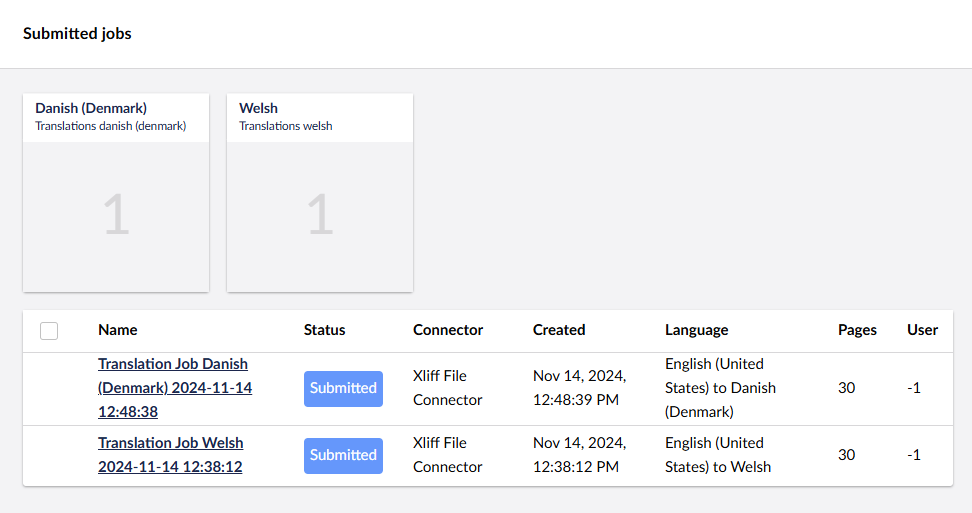
- A Translations section listing every job by stage and language
- A Translations tab on each page shows its languages, jobs, sets and word counts
- Translation Manager checks connectors in the background and moves jobs on when translations arrive
- Email notifications when jobs are pending, submitted, received or approved, set globally or per set
- Full job history, and a button to resend a notification email
Review and approve
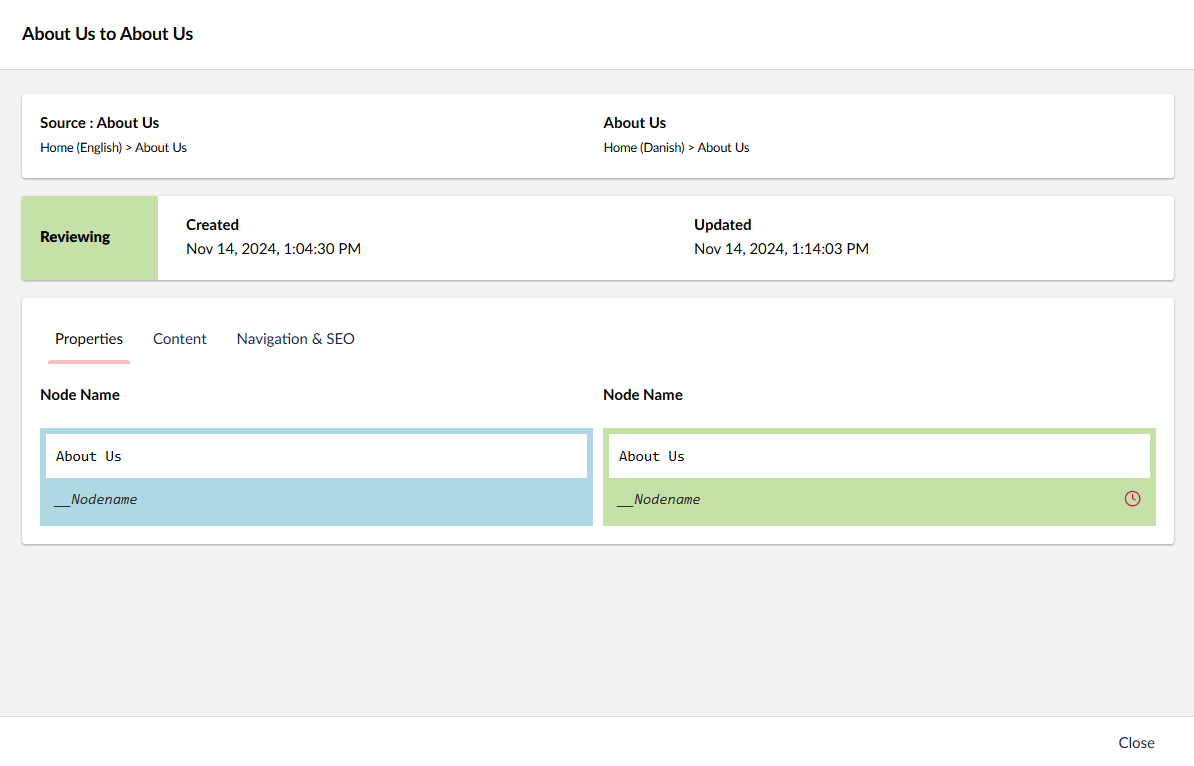
- Source and translation side by side, with the translation editable before approval
- Approve and publish, approve and save as a draft, or save and keep reviewing
- Approve part of a job and come back for the rest
- Automatic approval for trusted connectors, with an option to save as drafts instead of publishing
- Large jobs can be approved in the background
- Granular permissions for who can send, manage and approve
Content compatibility
Works with how your content is built
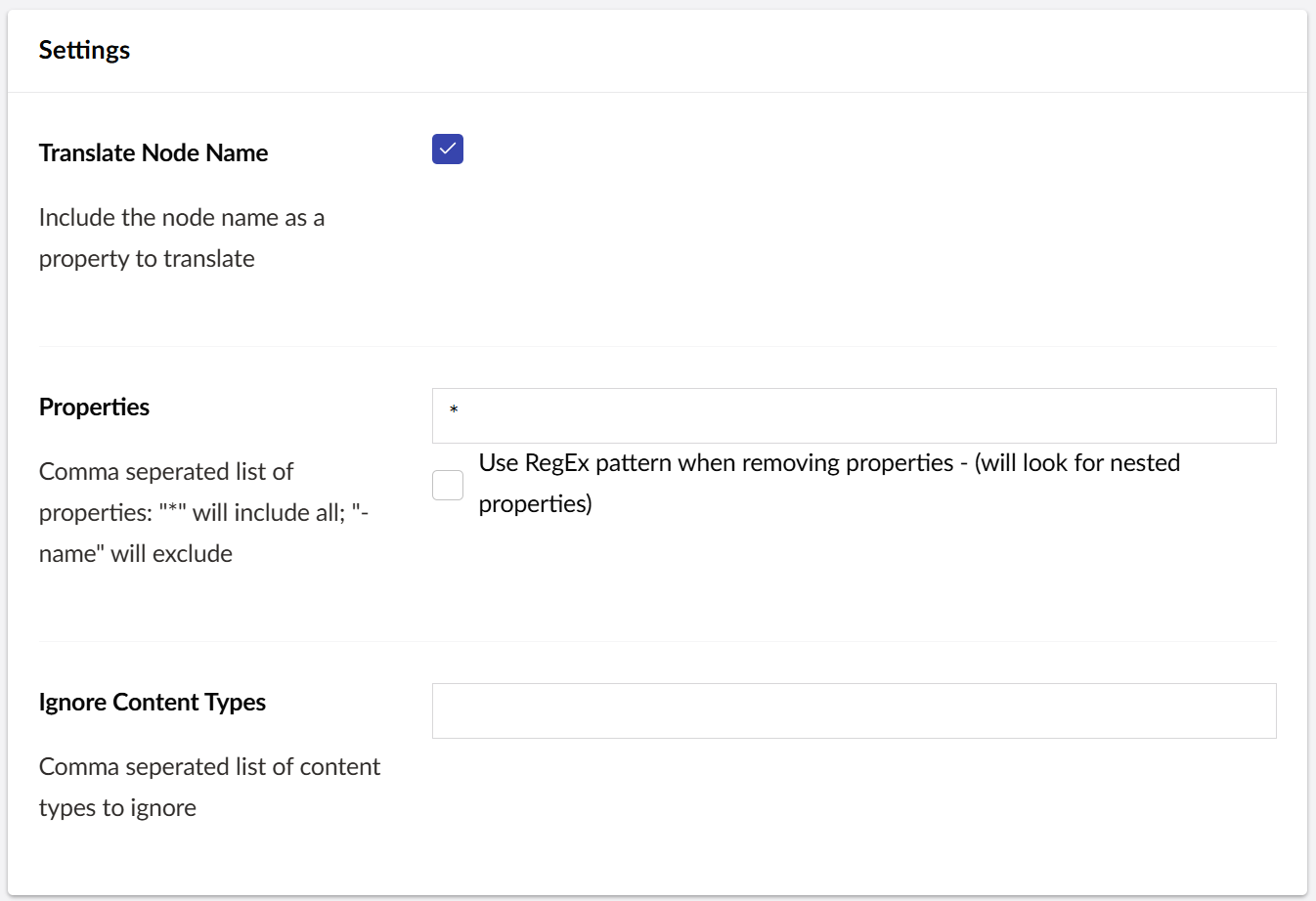
Umbraco content is rarely a flat set of text fields. Translation Manager pulls the words out of each property and leaves the configuration and markup behind, so translators only see text, and it puts everything back in the right place.
Property editors
- Block List, Block Grid and Single Block
- Rich text, including blocks inside rich text
- Blocks nested inside other blocks, at any depth
- Block-level variance: invariant blocks on culture-variant pages
- Textbox, Textarea, Markdown and Multiple Textstring
- Multi URL Picker link titles
- Contentment Text Input
Your own property editor can reuse a built-in mapper with a line of config, or get a value mapper of its own.
Any site structure
Culture variants in one tree, a separate tree for each language, or a mix of both. Use more than one translation set when parts of a site translate differently.
Links that follow the language
Internal links in rich text, Multi URL Pickers and content pickers point at the matching page on the translated site after approval.
Clone to language
Copy a page's content straight into a language that has no translation yet, to start editing it by hand.
Current Umbraco versions. Translation Manager is released for Umbraco 13 (13.2.23), Umbraco 17 (17.11.1), Umbraco 18 (18.5.0). A licence covers every version from v7 to v20. See Install for the package for your site.
Extending
Fit it to your setup
The parts most sites need to change are documented extension points.
Write a connector
If your translation service has an API and isn't on our list, write a connector for it. Base classes handle memory, glossary, throttling and retries.
Map custom properties
Point a custom property editor at a built-in mapper in appsettings.json, or write a value mapper for data in your own format.
Hook into each stage
Notifications fire as jobs are created, received and approved, so your code can react, or stop an item from being approved.
Try every feature for free. Unlicensed installs translate between one language pair, such as English to French, with no time limit. A licence unlocks unlimited target languages for a domain and its subdomains.